Write and send · Updated Oct 8, 2026
Write your emails
In short
You write emails in the editor, as a reusable template or straight in a campaign. Both use the same editor, which checks the email as you type.
Write a template
- Step 1: On Templates, click New template.
- Step 2: Write the subject and the email. Add variables like
{{first_name}}from the toolbar at the bottom. - Step 3: Add the compliance footer: the unsubscribe link and your postal address. Every email needs both.
- Step 4: Work through Inbox readiness beside the email until it's mostly green.
- Step 5: Click Preview (the eye) to see it filled in for a real contact.
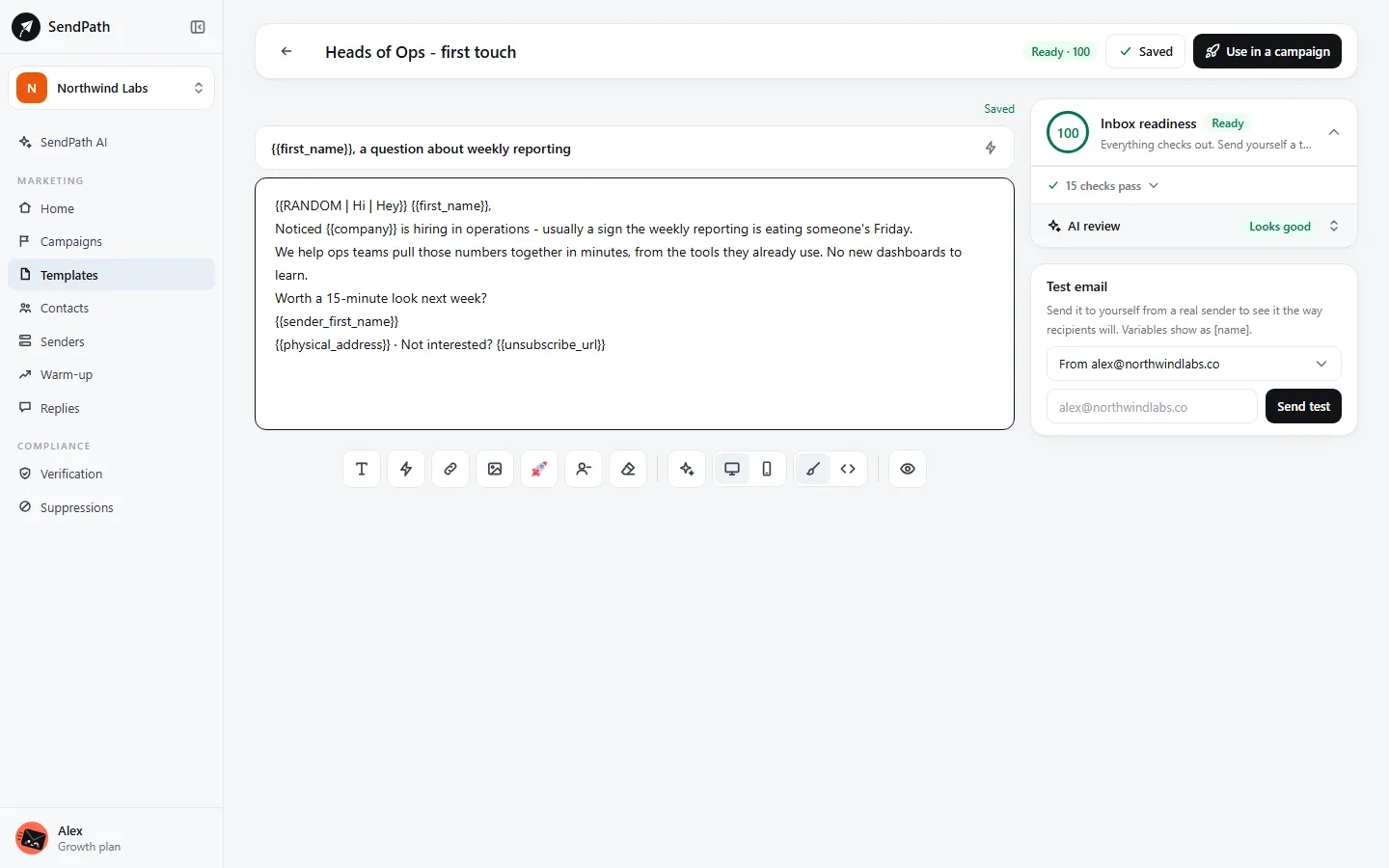
Everything saves as you type; Save (or Ctrl+S) saves at once. On Templates, each template's menu (the three dots) has Edit, Duplicate and Delete.
The editor
- Visual (the brush)
- For writing: formatting, links, images, emoji, variables and the footer.
- HTML code (<>)
- Shows the email's HTML, to edit it directly.
- Designed emails
- An email built in HTML, with its own layout, is shown as it looks and edited in the code view, so its layout is never flattened. Convert to simple text turns it into an ordinary email.
- Desktop and Mobile
- Show how the email reads on each, in the editor and in Preview.
Variables
Variables are filled in for each contact when the email is sent.
{{first_name}}- Becomes: Any column of the campaign's list, by its name.
{{sender_name}}- Becomes: The sending mailbox's name. Also {{sender_first_name}} and {{sender_email}}.
{{unsubscribe_url}}- Becomes: A link to unsubscribe in one click. Required in every email.
{{physical_address}}- Becomes: Your business address from Settings. Required in every email.
{{RANDOM | Hi | Hello}}- Becomes: One of the options for each contact (spintax), so emails don't all read the same. Options can hold variables.
A contact with no value for a variable an email uses is skipped, not sent a broken email. Set a name on every mailbox: without one, {{sender_first_name}} comes from the address and reads “Sales” for sales@.
Inbox readiness
Beside the email, Inbox readiness scores it as you write: spam-trigger words, subject length, links, images, length, formatting, tone, personalisation and variety. Each item says why it matters, and many have a one-click fix or Fix with AI.
These checks are advice; they never block sending. What blocks sending are the template rules: the unsubscribe link, the postal address, and variables the list can fill.
AI review
On a template, open AI review and click Review now. SendPath AI reads the saved email for a misleading subject, risky claims or anything that looks like phishing, and suggests changes you can apply. It only warns; it never passes or blocks an email.
Preview and test emails
Preview shows the email filled in for a real contact. A test email sends it to you from one of your mailboxes, filled in with the first contact on the list. A campaign needs a test of its current emails before it can start; change the emails afterwards and it asks for a new test.
If something's wrong
- The template fails the check.
- It's missing
{{unsubscribe_url}}or{{physical_address}}, or a brace is missing in a variable. The check names which. - {{physical_address}} is empty in the preview.
- Add your business address in Settings.
- My designed email looks different in the visual view.
- Designed emails are edited in the HTML code view. The visual view only shows them.
Was this page helpful?
Related
Something missing or wrong? Email support@sendpath.ai.