Set up sending · Updated Oct 8, 2026
Connect your mailboxes
In short
Senders holds the mailboxes your campaigns send from. They stay yours: SendPath sends through them and reads their replies.
How many mailboxes you need
Each mailbox should send about 30 campaign emails a day. More than that, and its mail starts landing in spam. So to send more, add mailboxes rather than raising one mailbox's limit. Every plan has unlimited mailboxes.
- Under 100
- Mailboxes: 1–4
- Domains (2–3 mailboxes each): 1–2
- 100–1,000
- Mailboxes: 4–35
- Domains (2–3 mailboxes each): 2–12
- 1,000–10,000
- Mailboxes: 35–350
- Domains (2–3 mailboxes each): 12–120
Connect a mailbox
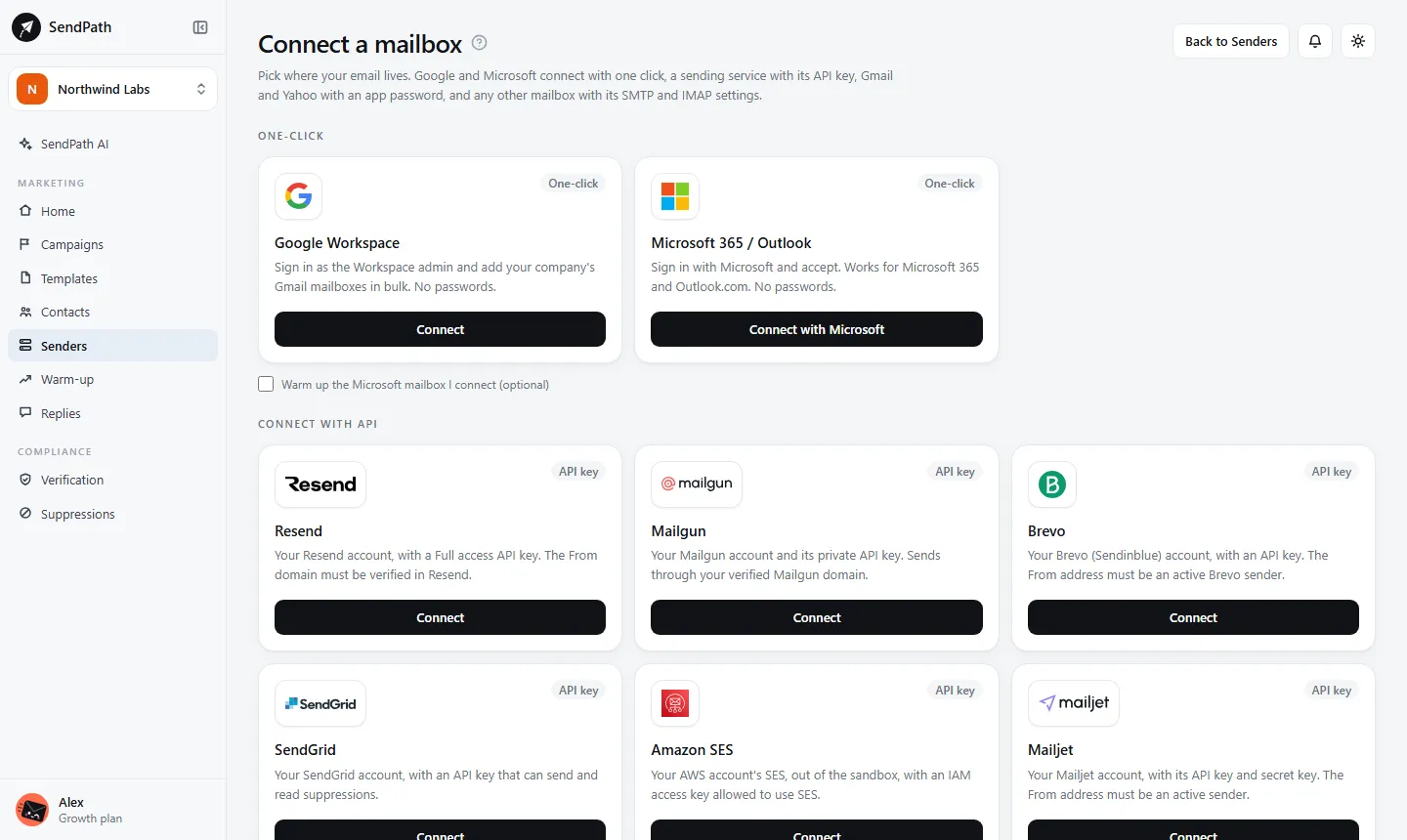
- Step 1: On Senders, click Connect sender.
- Step 2: Pick where your email lives (see the table below) and follow its steps.
- Step 3: If the mailbox is new, tick Warm up this mailbox. Warm-up never starts unless you ask.
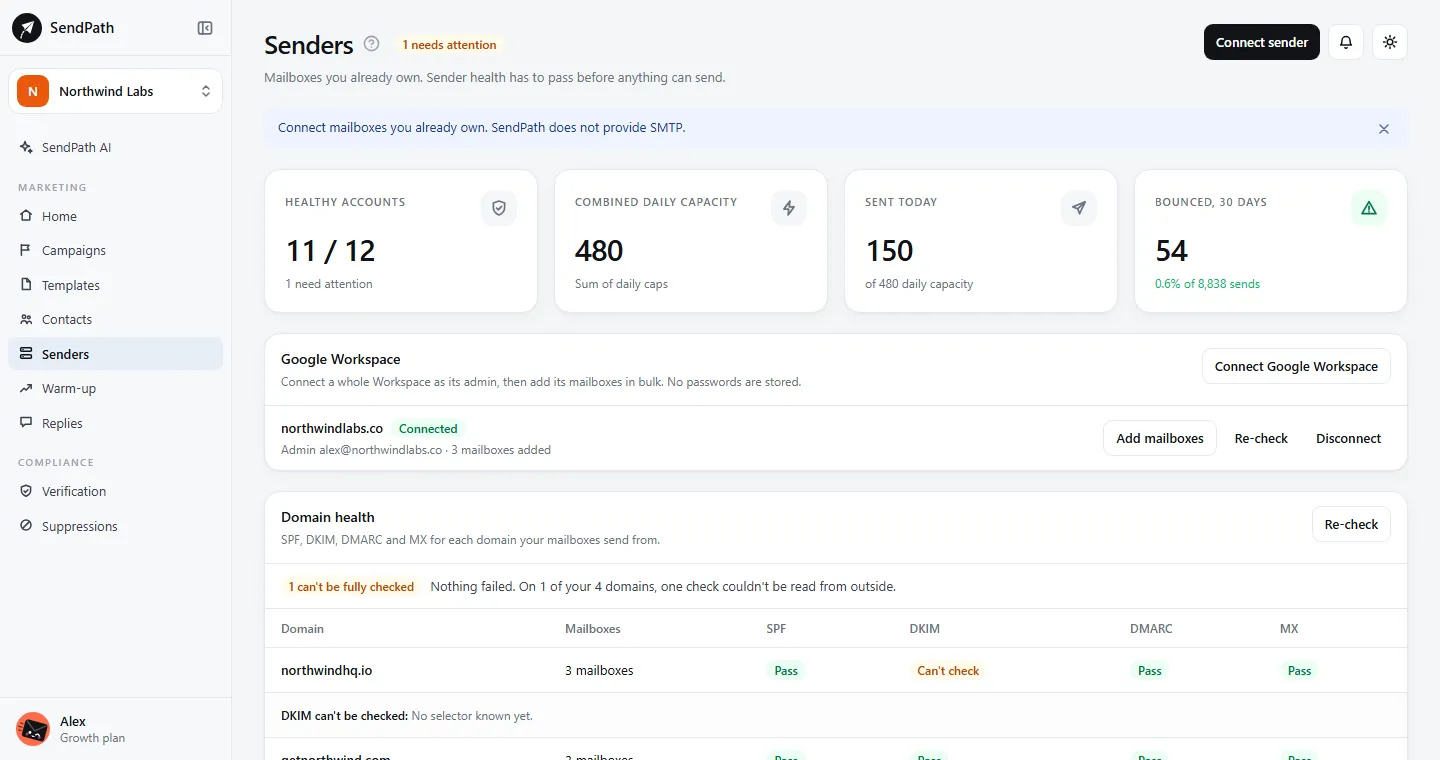
- Step 4: Back on Senders, check the mailbox's health. Fix anything red before you send from it.
- Google Workspace
- One click. A Workspace admin can also connect the whole domain at once and pick which people's mailboxes to add.
- Microsoft 365 / Outlook
- One click: sign in with Microsoft and allow access.
- Gmail, Yahoo Mail
- The address and an app password, not your normal password. The connect screen links to where you create one.
- Any other mailbox
- The address and its password. SendPath fills in the server settings for sending (SMTP) and reading replies (IMAP); you can change any of them.
- Sending services
- Resend, Mailgun, Brevo, SendGrid, Amazon SES and Mailjet connect with an API key (Connect with API). Your domain must be verified at the service first.
Mailbox health
Each mailbox has a health score out of 100 and one of three states:
- Healthy
- Sends normally.
- Attention
- Still sends, but something should be fixed: no DMARC record, DKIM not confirmed yet, or bounces over 2%.
- Blocked
- Sends nothing until it's fixed: the login was rejected, SPF fails, or bounces went over 5%.
Open a mailbox to see why. Why this sender isn't fully healthy lists each problem, and DNS checks shows the exact record to add. DNS is checked again every day on its own; Re-check checks it now.
Daily cap and sending window
- Daily cap
- The most emails the mailbox sends in a day: 50 unless you change it (1 to 2,000). Campaign emails go first, and warm-up uses what's left.
- Sending window
- Optional hours the mailbox may send in, in the workspace's timezone. Without one it sends whenever a campaign's schedule allows.
Change the cap under Limits and replies on the mailbox's page, then Save.
Where replies go
SendPath reads replies from the mailbox that sent the email. If the mailbox has a Reply-to address, replies go there instead, and SendPath never sees them: they don't show in Replies, and unsubscribe requests in them aren't caught. Leave Reply-to empty.
When a mailbox is stopped for bounces
A mailbox stops when more than 5% of its emails bounce (counted once it has sent 50). The addresses that bounced are already suppressed.
- Step 1: Re-verify the rest of the list on Verification, so the next emails don't bounce too.
- Step 2: Open the mailbox and click Resume sending. Its bounce count starts again from zero.
If it goes over 5% again, it stops again, to protect your domain.
If something's wrong
- Gmail or Yahoo says the password is wrong.
- Use an app password, not your normal one. Gmail only offers app passwords once 2-Step Verification is on.
- A mailbox says the credentials were rejected.
- Its password changed or its access was removed. Open the mailbox and use Replace password, or connect it again.
- A mailbox is Blocked for SPF.
- Add or fix your SPF record. See SPF.
- Replies from one mailbox never show up.
- Clear its Reply-to, and check that Reply sync on its page works.
Was this page helpful?
Related
Something missing or wrong? Email support@sendpath.ai.