Your audience · Updated Oct 9, 2026
Import contacts
In short
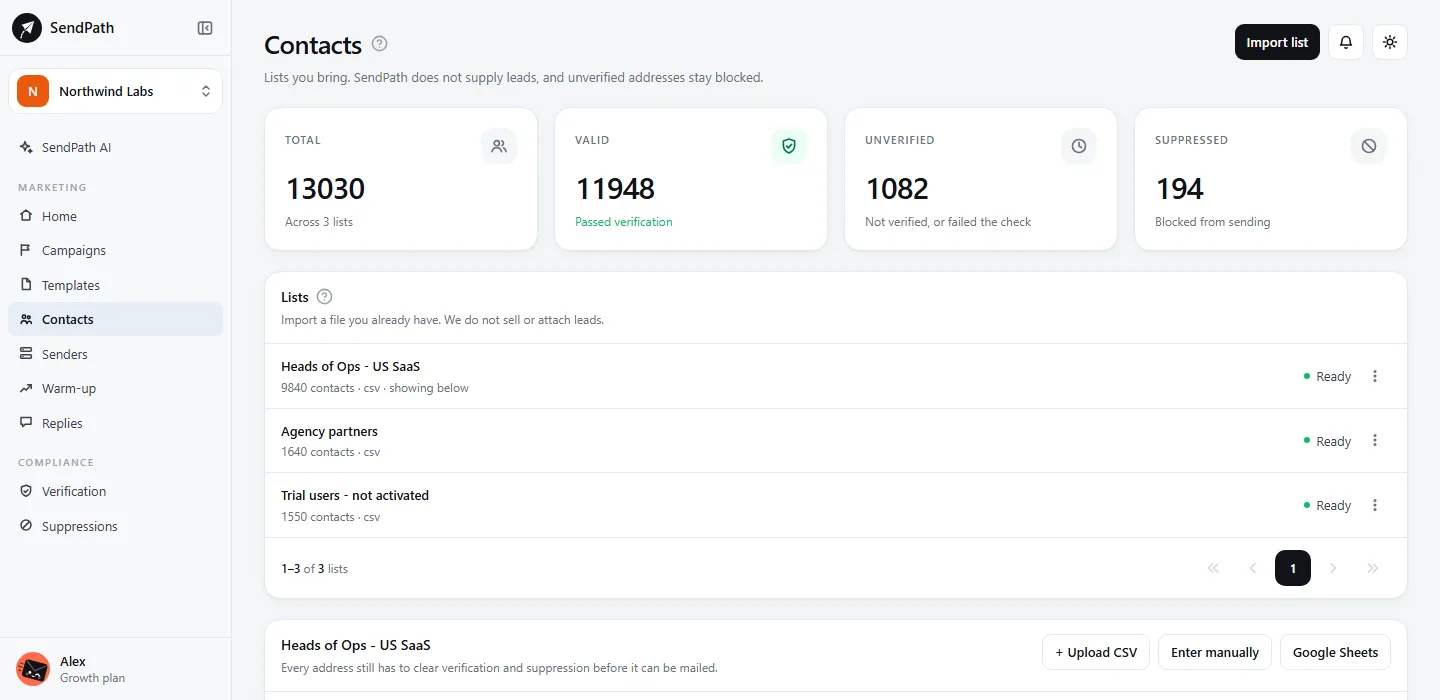
Contacts holds the lists you bring; SendPath never supplies leads. Every column you import can go into your emails, and every address is verified before it can be emailed.
Import a list
- Step 1: On Contacts, click Import list, give the list a name, and pick how to add the contacts: Upload CSV, Enter manually or Google Sheets.
- Step 2: Give each column a type. Email is required, and only one column can be Email. Columns you don't need: Do not import.
- Step 3: Import. The new contacts start as Not verified yet.
- Step 4: Verify the list (recommended): Verify emails in its menu (the three dots), or Run check on Verification. See Verify your lists.
A CSV file or Google Sheet can be up to 50 MB. The first row must be the column names.
Columns become variables
Every column you keep becomes a variable you can put in an email. Its name comes from the column's name: First Name becomes {{first_name}}, Company size becomes {{company_size}}.
- A contact missing a value that an email uses is skipped, rather than sent a broken email.
- The campaign editor warns you when an email uses a variable the list doesn't have.
Check a list again
Mailboxes close and companies change, so an older list drifts. Recheck emails in the list's menu checks every address again without importing it again. It uses one verification per address, and asks before it starts. While a check runs, Stop check in the same menu ends it: what it found so far is kept, the addresses it didn't reach stay as they were (not verified, on a first check), and those don't use a verification.
When a first check stopped or didn't finish, Resume check in the list's menu picks it up: it checks only the addresses that aren't verified yet, and the ones already checked keep their results. It uses one verification per address it checks. Recheck emails starts over on the whole list instead.
Good to know
- Starter
- Contacts you can store: 2,000
- Growth
- Contacts you can store: 25,000
- Scale
- Contacts you can store: 100,000
- Members with the Contacts: Export permission can download lists as CSV.
- Deleting a list removes its contacts for good. Suppressions are workspace-wide and stay.
If something's wrong
- The import says it can't find the Email column.
- Set one column's type to Email. If the addresses are spread over two columns, combine them into one in your spreadsheet first.
- A contact wasn't emailed.
- They may be unverified, invalid, suppressed, or missing a value an email uses. The campaign's Contacts tab shows each contact's state.
Was this page helpful?
Related
Something missing or wrong? Email support@sendpath.ai.