Results · Updated Oct 8, 2026
Replies
In short
Replies collects the answers that land in the mailboxes you connected, and labels each one. You answer from your own mailbox: nothing is ever sent from this page.
Labels, and what happens next
SendPath AI labels every reply, with a keyword rule running alongside it. You can change any label with one click. Labels are free: they never use credits.
- InterestedSequence stops. Answer them.
- MeetingSequence stops. Counts as interested.
- QuestionSequence stops. Answer the question.
- Not interestedSequence stops. Not suppressed.
- OOOAn automatic out-of-office reply.
- UnsubscribeSuppressed at once. Never emailed again.
Work through your replies
- Step 1: Open Inbox: the replies still to deal with.
- Step 2: Open a reply to read the thread, or use the one-click Interested, Not interested and Done on its row. Each has Undo.
- Step 3: Answer from your own mailbox, then mark it Done. Done moves on to the next one.
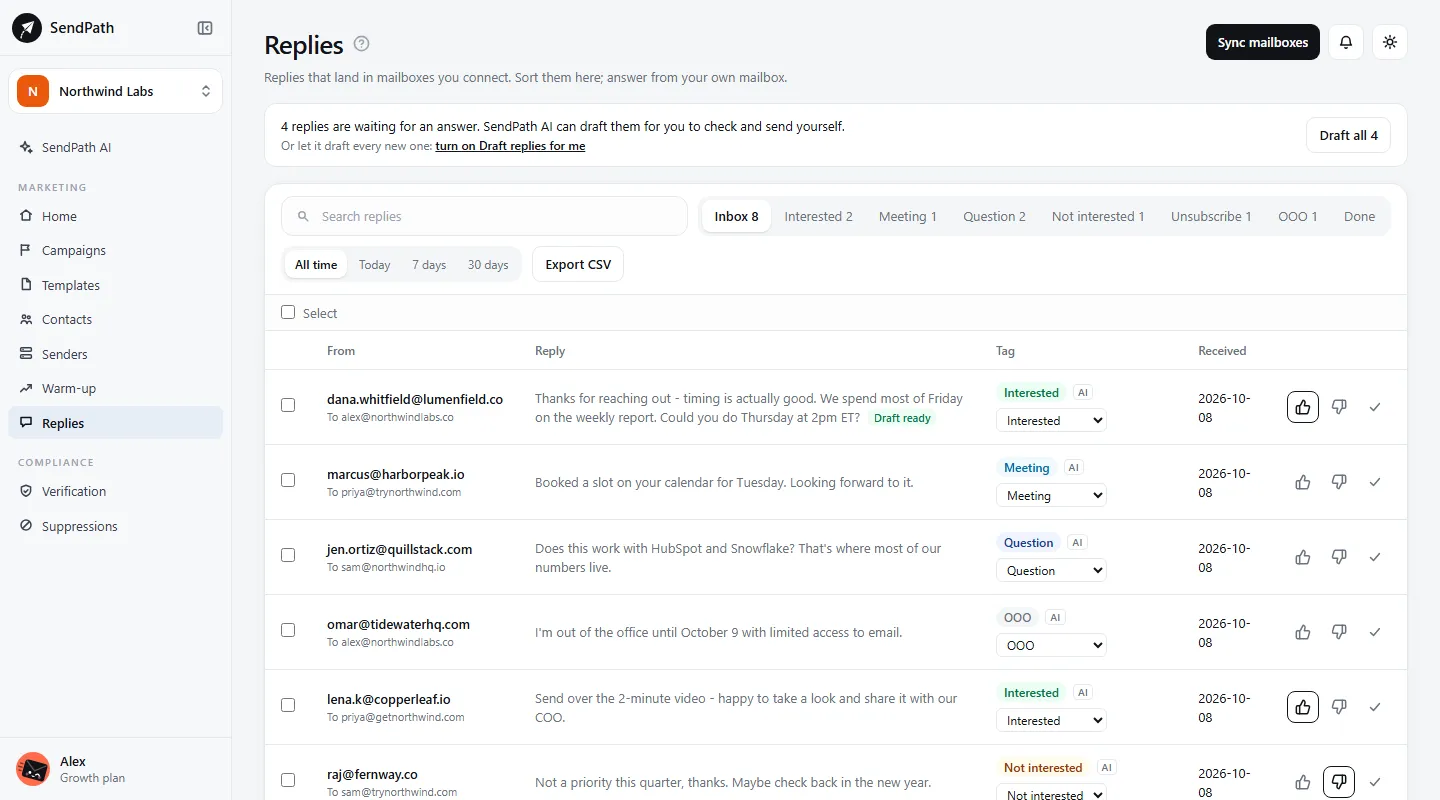
- Done holds the replies you've dealt with. Each label has its own tab, listing everyone with that label, open or done, so Interested is always your list of interested people.
- Tick rows, or select all in a tab, to change them together.
- Export CSV downloads the replies you've ticked, or every reply in the tab when none are ticked.
How replies arrive
SendPath reads your mailboxes every 10 minutes. Sync mailboxes reads them now. It matches each reply to the email it answers, and reads bounce messages too.
Answer with SendPath AI
- Step 1: In an open reply, click Draft a reply. SendPath AI summarises the conversation and writes an answer in their language, from the thread, the email they were sent and your business memory.
- Step 2: Edit the draft. Facts it doesn't know appear as placeholders like [price]; it never makes them up.
- Step 3: Click Copy (or Copy & mark done) and send it from your own mailbox.
Draft all drafts every interested, meeting and question reply that's waiting. The Draft replies for me task drafts each new one as it arrives. Drafts use credits; see Credits.
What each label means
- Interested
- Wants to hear more.
- Meeting
- A call proposed, agreed or booked. Counts as interested everywhere.
- Question
- Asks something before deciding.
- Not interested
- A polite no. The address isn't suppressed.
- Unsubscribe
- Asks to be removed, or anything stronger than a polite no. Suppressed at once.
- OOO
- An automatic out-of-office reply.
If something's wrong
- Replies aren't showing up.
- Check the mailbox has no Reply-to pointing elsewhere (Replies warns you when one does), and that its reading connection works on Senders. Then click Sync mailboxes.
- A reply has the wrong label.
- Click the right label on its row. If you change Unsubscribe to another label, the address stays suppressed until someone removes it on Suppressions.
Was this page helpful?
Related
Something missing or wrong? Email support@sendpath.ai.