SendPath AI · Updated Oct 8, 2026
Connect your AI
In short
Connect your AI lets Claude, ChatGPT, Cursor or any MCP app read one of your workspaces, so you can ask about it from the AI you already use. It can only read, and it's free.
Set it up
On the SendPath AI page, open Connect your AI and pick your app; it shows the same steps with a copy button. The address to add is:
https://api.sendpath.ai/mcp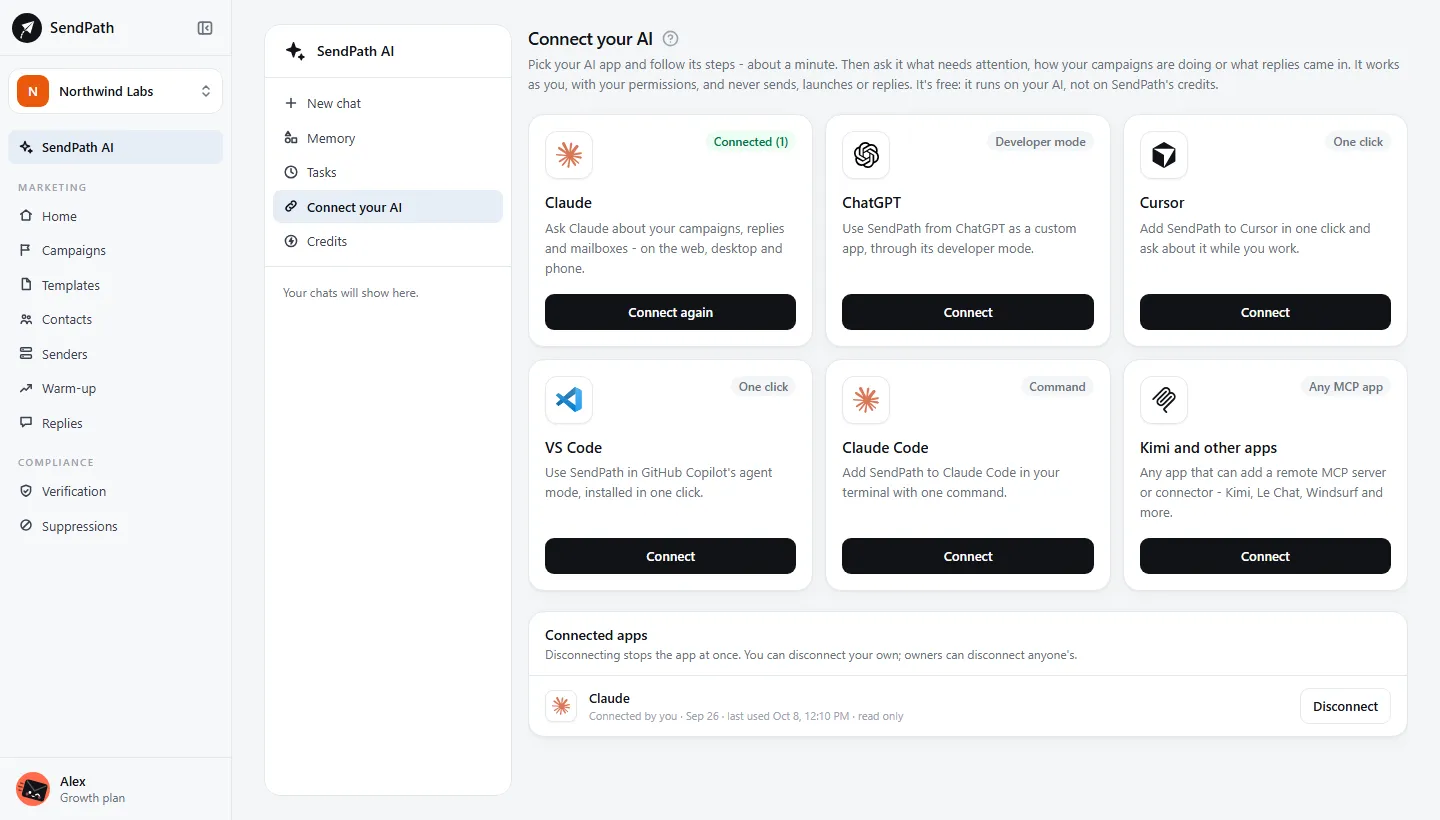
Claude
- Step 1: Open Claude's settings, then Connectors.
- Step 2: Click Add custom connector. Name it SendPath and paste the address.
- Step 3: Click Add, then Connect next to SendPath.
- Step 4: Sign in to SendPath and click Allow. It then works in every Claude app you're signed in to.
ChatGPT
- Step 1: Open ChatGPT's settings, then Apps & Connectors.
- Step 2: Under Advanced settings, turn on Developer mode. (It depends on your ChatGPT plan.)
- Step 3: Click Create, name it SendPath, paste the address and choose OAuth.
- Step 4: Sign in to SendPath and click Allow. In a chat, pick SendPath from the + menu.
Cursor, VS Code, Claude Code and others
- Cursor and VS Code: click Add to Cursor or Add to VS Code on the Connect your AI page, then Install, sign in and Allow.
- Claude Code: run the command below, then
/mcpand Authenticate.claude mcp add --transport http sendpath https://api.sendpath.ai/mcp - Kimi, Le Chat, Windsurf and any other app: add a remote MCP server (type HTTP) with the address, then sign in and Allow.
What it can see
- What needs attention
- It can't: Send, launch or pause anything
- Campaigns and their results
- It can't: Reply to anyone
- Replies
- It can't: Remove a suppression
- Mailbox health and warm-up
- It can't: Delete anything
- Contact list totals (not the contacts)
- It can't: See other workspaces
- Business memory and credits
It works as you, with your permissions, in the one workspace you chose when you clicked Allow. It runs on your AI app, so it uses no SendPath credits.
Disconnect an app
Connected apps on the same page lists every app connected to the workspace. Click Disconnect on yours. Owners can disconnect anyone's.
If something's wrong
- The app says it can't connect.
- Check the address is exactly the one above, and that the app supports remote (HTTP) MCP servers with sign-in.
- It shows the wrong workspace.
- Disconnect it, then connect again and pick the other workspace when you click Allow.
Was this page helpful?
Related
Something missing or wrong? Email support@sendpath.ai.